> ## Documentation Index
> Fetch the complete documentation index at: https://docs.klipl.ink/llms.txt
> Use this file to discover all available pages before exploring further.
# Creating A QR Code
> Learn how to create your first QR Code in the KlipLink dashboard.
## What are QR Codes Useful for
QR codes are useful for instantly connecting people to digital content without typing a link. They’re perfect for menus, product packaging, event tickets, business cards, and any place where quick, contactless access improves the user experience.
## How To Create a QR Code
[**Log in**](https://klipl.ink/login) to your KlipLink account and head to the [**QR Codes section in the sidebar.**](https://klipl.ink/app/qrcodes) This is where you’ll create, customize, and manage all your QR codes.
Click the Create **New QR Code** button at the top of the page. You’ll see your current monthly QR code allowance displayed in the popup.
Fill in the fields in the creation form:
* Optional **Title:** Give your QR code a label so you can identify it later.
* Required **Destination:** Enter the URL you want users to open when they scan the code.
KlipLink lets you style your QR code to match your brand:
* **Shape:** Choose between Square or Rounded QR patterns.
* **Eye Style:** Customize the design of the QR "eyes" (the corner markers).
* **Accent Color:** Set the color of the QR pattern.
* **Background Color:** Choose a background color that complements your brand.
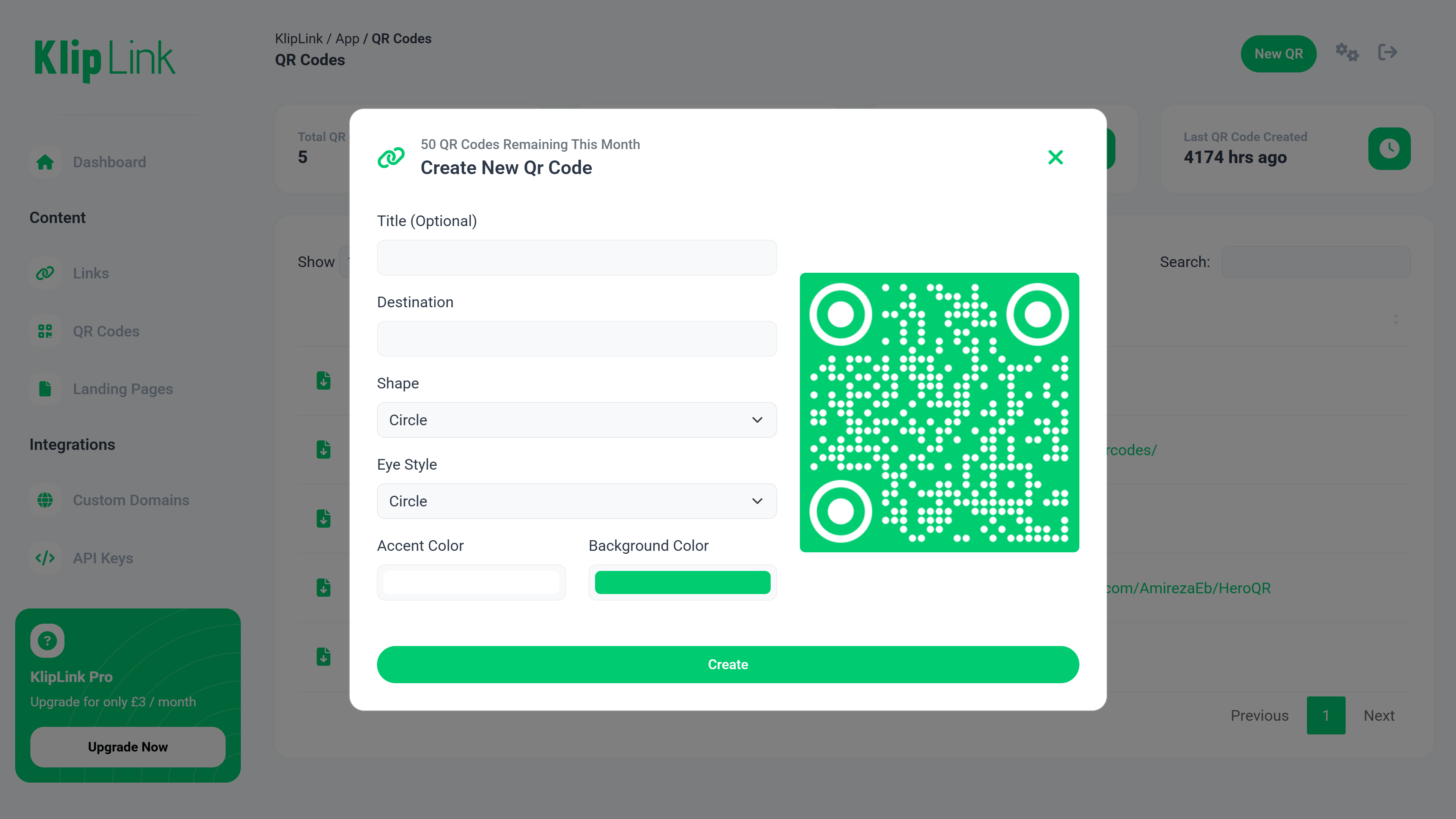 Once you're happy with the design, click **Create**. Your QR code is now generated and ready to use.
You can download it, print it, share it digitally, or embed it on posters, menus, product packaging, business cards, and more.
## Benefits of Using KlipLink QR Codes
* High-resolution downloads for print and digital campaigns
* Brand-aligned customization options
* Track scans and engagement with analytics
* Update the destination link anytime — without changing the QR code itself
Track scans and engagement across country, device, browser, time of day, and more.
Change where your QR Code redirects at any time, without changing the QR code itself.
Great for print and digital campaigns
Customise to your brand's needs
Once you're happy with the design, click **Create**. Your QR code is now generated and ready to use.
You can download it, print it, share it digitally, or embed it on posters, menus, product packaging, business cards, and more.
## Benefits of Using KlipLink QR Codes
* High-resolution downloads for print and digital campaigns
* Brand-aligned customization options
* Track scans and engagement with analytics
* Update the destination link anytime — without changing the QR code itself
Track scans and engagement across country, device, browser, time of day, and more.
Change where your QR Code redirects at any time, without changing the QR code itself.
Great for print and digital campaigns
Customise to your brand's needs